How to Sync Obsidian Across All Devices Using Git, Automatically and for Free
20 min read
If you’re looking for a seamless, automatic and totally free way to sync your Obsidian vaults across all your devices, using Git, you’re in the right place! The main benefits of this as your sync setup are the change history, freedom of choice and the fact that it remains completely free. I am currently using this exact solution across all of my devices to passively keep my notes in sync.
Obsidian Sync is a paid subscription
If you can afford the recurring cost, please go support the Obsidian team. This guide is for people who are already familiar with Git, or who just really need a free solution.
Here, I will be taking you through: choosing a Git provider, creating a repository, setting up sync on the devices you use and inserting some initial vault contents if you already have a vault.
Read to the end for a chance to join the giveaway!
One expectation to set
This isn’t instant live sync. Your vault syncs on a timer, or when you open or close an app. For notes that should be more than fine.
This setup has been rock solid for me for about two years. I use it to sync my vault and to automatically update my Markdown websites.
Prerequisites
Understanding Git, Providers, Clients and Repositories
We will need a few things before getting started:
A Git provider selected
A repository on this provider
For those that are unfamiliar, here is a quick rundown on these concepts.
Git is just a piece of software that tracks changes to a folder or files. Usually that’s code, but for us it’s a vault. It also handles conflicts, which is when two devices edit the same file before they sync. Git notices this and, instead of silently picking one to keep, lets you choose which changes to retain.
A Git provider is sort of the equivalent to your cloud storage provider, in that they store all your files. This would be Codeberg, GitLab, GitHub etc. You can also self-host your own server using Gogs or Gitea and keep everything completely local.
A Git client is the application or UI you use to interact with Git. This avoids using the terminal, typing commands and fixing conflicts by hand. It uses Git under the hood, so it behaves exactly the same as the commands.
A repository (or “repo”) is sort of the equivalent to a folder inside your cloud storage. Instead of having one big folder where you make subfolders for each project, like in Google Drive or Dropbox, you have a separate repo per project with its own history. For us, one repo is one vault. Most providers give you a few gigabytes per repo, which is plenty for notes.
There are also a few terms that get thrown around when using Git that you should be aware of.
Clone is when you download a repo from your provider to a device for the first time.
Commit is where you save a snapshot of your changes.
Push sends that snapshot up to your provider.
Pull grabs everyone else’s snapshots down from the provider.
So a pull is like downloading the changes, and a commit and push is like uploading the changes. Whenever this guide says sync, it means pulling changes and then committing and pushing, which is a complete sync cycle.
Choosing a Provider
I’ll be using GitHub in this guide, mostly because that’s what I already had set up. If you’re starting fresh, I’d actually point you at Codeberg instead. The steps are basically identical and the buttons and names just move around a bit. GitLab and self-hosting are also very good options.
This isn’t a lock-in decision either. You can move the repo to another provider later if you want. They are just files after all.
We will be creating a new private repository to hold the files you want to sync. While this offers a relatively secure solution, keep in mind that no system is completely immune to determined attackers.
Log into your GitHub account > Click your profile icon in the top right
Select “Your repositories” from the sidebar
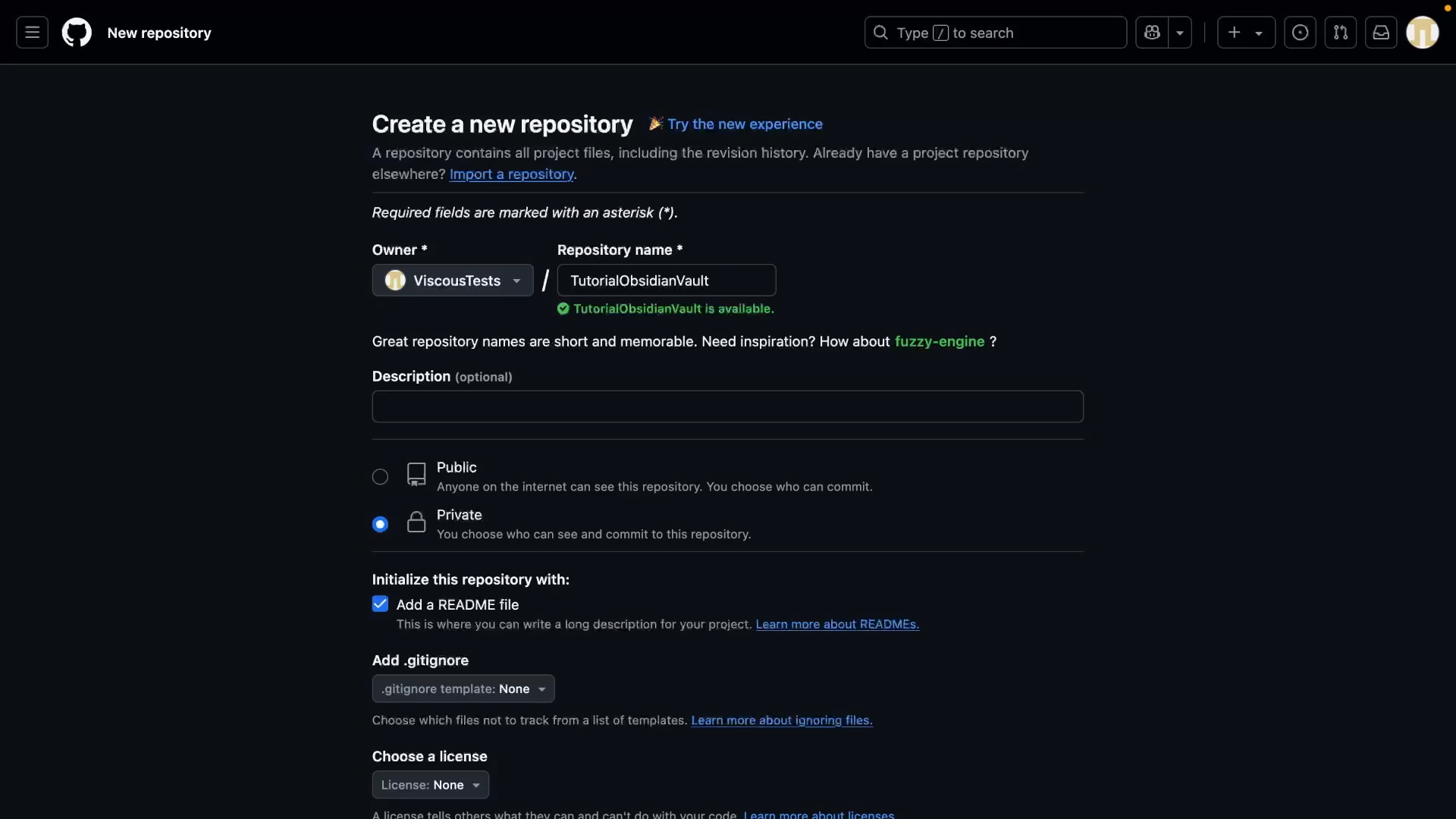
Click “New” to create a new repository (or go straight to github.com/new)
Enter the repository details:
Name (required)
Description (optional)
Select “Private” or “Public” based on whether you want others to have anonymous access to the contents
Enable “Initialize with README” so that your repository has some initial contents. A completely empty repo can trip up both the Obsidian-Git plugin and GitSync, so a starter file makes things easier going forward.
Click “Create repository”
Good to go! That’s the shared part done, everything after this is per platform.
If you have an existing vault, the first thing to do is back it up. All that means is copying your vault folder to another location so you have a second copy to restore from if anything goes wrong. We won’t touch it until the very end, but better safe than sorry. If you’re starting from scratch, skip ahead.
What We’re Setting Up
On desktop we’ll be setting up three pieces.
Git, which does the actual tracking work
A Git client (GitHub Desktop), which gives you a GUI, especially useful for merge conflicts
The Obsidian-Git plugin, which takes care of automated sync and should mean you never actually have to open the client
Most commands and steps are exactly the same across Windows, macOS and Linux. Any differences are called out as we go.
Opening a Terminal
In the next few steps you’ll need a terminal to run a few commands. It’s just for some one-time setup and should just be some copy-pasting.
Windows: Install Git for Windows, which provides Git Bash. Open it from the Start menu.
macOS: Open Terminal.app (Applications > Utilities > Terminal) or use Spotlight (Cmd + Space, then type “Terminal”).
Linux: Most distros ship with a terminal emulator preinstalled (e.g. GNOME Terminal, Konsole). Launch it from your app launcher or with Ctrl+Alt+T.
Installing Git
“Git” is the name of the program that will be doing most of the heavy lifting in tracking the change history of your vault. Before we can do anything, we first need to make sure Git is installed on our device.
Here are the commands/steps to install Git on Linux, macOS, or Windows:
This is on by default for new GitHub accounts. If it’s on, using your real email here will get your pushes rejected. Go to github.com/settings/emails and grab the noreply address listed there. It will look something like
12345+username@users.noreply.github.com
Use that as your user.email instead.
Installing GitHub Desktop
With that done, at this stage, you might want to install GitHub Desktop. This is a simple tool available on all non-mobile platforms, which makes it easier to interact with Git without requiring knowledge of commands. I will be referencing it to keep this guide user friendly, but if you have more advanced knowledge, feel free to use your own commands or tools!
You can grab it for Windows and MacOS here and the Linux fork from here
There will be a tiny bit of setup after the install, so just follow the instructions and
Log in to your GitHub account through the browser
Leave the author details as default or fill them out with your username and email if it’s empty
Generate and add SSH Key for GitHub
This step is all about setting up authentication so you can interact with your GitHub account using Git, without having to enter an email or password each time. An SSH key is basically a pair of files, a private one that stays on your machine and a public one that goes to your provider so that it knows who you are.
We will need only 5 commands!
Generate an SSH Key
This command will generate a pair of keys that will be used for secure authentication. You should take every precaution to make sure the keys produced are kept private.
Windows (Git Bash) / Linux / macOS:
ssh-keygen -t ed25519 -C "your-email@example.com"
Press Enter to accept the default location (~/.ssh/id_ed25519). Set a passphrase if desired.
Start the SSH Agent
This command launches the background process (ssh-agent) that handles your private keys securely. It must be running to use SSH keys for authentication.
Windows (Git Bash) / Linux / macOS:
eval "$(ssh-agent -s)"
Add Your SSH Private Key to the Agent
Once the agent is running, this command loads your private key into it so it can be used for authentication without re-entering the passphrase each time.
Windows (Git Bash) / Linux / macOS:
ssh-add ~/.ssh/id_ed25519
Windows (Git Bash) / Linux:
Make sure to change out the path if you changed it from the default
Could not open a connection to your authentication agent
Run:
eval "$(ssh-agent -s)"
On Windows
If using PowerShell or CMD, use Git Bash instead. GitHub Desktop depends on the keys managed in Git Bash.
Test your setup using ssh -T git@github.com
Copy Your SSH Public Key
Use the appropriate command to copy the public key you generated previously into your clipboard. The public key is the one, out of the pair, that you share with your Git provider.
Windows (Git Bash):
clip < ~/.ssh/id_ed25519.pub
macOS:
pbcopy < ~/.ssh/id_ed25519.pub
Linux:
xclip -sel clip < ~/.ssh/id_ed25519.pub
Add the SSH Key to GitHub
Now let’s give GitHub that key, so we can start accessing our account through Git.
Paste the key, give it a title, and click Add SSH key
Clone the Repository with GitHub Desktop
That’s authentication officially setup for your GitHub account, so we can now move on to cloning that repository we made earlier
Open GitHub Desktop.
Go to File > Clone Repository.
Select the URL tab and enter your newly created repository url, making sure it looks like: git@github.com:username/repo.git (not https://)
This ensures GitHub Desktop can authenticate using your SSH key.
Choose a local directory for the repository (e.g., ~/Documents/my-obsidian-vault).
Click Clone.
Now if you go ahead and open up that folder in Obsidian, you should have that README file (from the checkbox we ticked during creation) and nothing else.
BONUS: Add Initial Vault Content (optional)
If you like, you can take this opportunity to load up the folder with some initial content or copy in the files from your existing vault. If you have an existing vault, clone first, then copy your notes in from the backup you made, rather than moving the original, so you still have that spare if anything goes wrong.
Hidden Folders
If you don’t see .git or .obsidian, enable hidden files/folders in your file explorer:
Windows: View > Hidden Items
macOS: Cmd + Shift + . in Finder
Linux: Ctrl + H in most file managers
Just make sure you don’t overwrite or delete the .git or .obsidian folder in there (they may be hidden by default), without meaning to. .git is where all your history lives, and if you delete it the folder just becomes files again. .obsidian is your vault settings.
Install Obsidian-Git Plugin
The last thing to do for our desktop setup is to make sure we have auto sync. For this, we will be using obsidian-git, which is an Obsidian Community Plugin that automates uploading and downloading the changes in your vault at given intervals, as well as intelligently, when you are done editing.
Go to Settings > Community Plugins in Obsidian and turn off Restricted Mode if prompted.
Click Browse and search for Git.
Install and enable the Git plugin.
Configure Obsidian-Git
Go to Settings > Git.
Set the following options:
Auto commit-and-sync interval (minutes): (e.g., 5 minutes).
Auto commit-and-sync after stopping file edits: Enabled.
Commit message on auto commit-and-sync: Customize or leave as default.
Pull on startup: Enabled.
Push on commit-and-sync: Enabled.
Pull on commit-and-sync: Enabled.
Save changes.
You’re now set up to have auto sync for your Obsidian vault on desktop!
To confirm it works, feel free to open the Git > Source Control View (Ctrl + P, or Cmd + P on macOS, then type “Git: Open source control view”) and sync manually using the Commit and Sync button
Same as on desktop, back it up first by copying your vault folder somewhere else (the Files app on iOS, or any file manager on Android). If your phone doesn’t have any notes on it yet, there’s nothing to do.
The setup on mobile is quite different to desktop. Instead of Git, a Git client and a plugin, on mobile we just have one application doing the whole thing, which is called GitSync. While there are various Git clients available for Android and iOS, none offer a consistent experience across both platforms. GitSync was built specifically to solve this, providing a unified, purpose-built solution that’s easier to set up and maintain.
For transparency, GitSync is developed by me. It was a project built out of my own necessity, that, I am happy to say, people are finding useful for themselves. It started off as a very basic automated sync client just for Obsidian, and is now becoming a more fully featured Git client, while still staying easy enough for people to use for automated sync.
Why not just use the Obsidian-Git plugin on mobile?
While it does technically work, the Obsidian-Git documentation explicitly states that mobile is not stable, and they even list GitSync as the primary alternative. For the nerds, Obsidian-Git uses a JavaScript reimplementation of Git, which is not 100% accurate and fails especially in mobile environments. GitSync isn’t limited to JavaScript and so can use a fuller implementation of Git, for faster performance and better reliability.
GitSync does have a few premium features behind a paywall, but no part of this guide requires any of them. It’s mostly for those who want to sync multiple vaults or use very advanced Git features.
Installing GitSync
You can find official releases of GitSync at the respective app stores:
Before setting up GitSync on iOS, we will need to do some quick setup in Obsidian
Open Obsidian
Click “Create a vault” (this will need to be new and separate from any vault’s contents you want to sync in the end)
(Skip setting up sync if prompted)
Enter a name for your vault (e.g. “Obsidian”)
Leave it empty, as we’ll be overwriting the contents when we clone into it.
The initial GitSync onboarding aims to be a beginner-friendly setup walkthrough, so it should be very quick to get setup!
Open GitSync
Select “Let’s Go” on the welcome dialog
Answer how you discovered the app (optional)
On the “choose your focus” page, pick Sync mode or Client mode
Most users, especially beginners, will prefer Sync mode
If you’re a more advanced user or already very familiar with Git, I’d recommend Client mode, which exposes more granular sync options
Feel free to skip the premium page, since we don’t need that here
Accept notifications permissions
The app uses these permissions to notify you when sync operations are occurring in the background. There is also an in-app setting to toggle these off.
The app requires this permission to read/write your vault contents to keep it in sync
Android has the ability for scoped storage access, but the API for this is incomplete and slow, to the point that it cannot be used in this case.
On the “almost there” dialog, you can optionally check out the wiki, or skip on ahead
Now we will authenticate with our previously created GitHub account. At this point, you could reuse the private key from the desktop setup with GitSync too, by utilising the SSH authentication option and importing the key. If you’re using Codeberg, GitHub, GitLab or Gitea, you can also use OAuth directly, which just lets you log in through the browser. Otherwise you’ll have to use an SSH key or a token through HTTPS.
However, for simplicity and speed, I will be running through the GitHub OAuth option included in the app.
Make sure you have the GitHub authentication option selected and click the OAuth button
Authenticate in the browser with your GitHub credentials
As a final step, the app will request that you fill out the author details (username & email)
Please fill this out with your GitHub username and/or email address
The next step is to clone your existing repository from GitHub. If you have used OAuth, you can simply select the repository name from the list. If you opted for SSH authentication, then just use a valid URL, as described for the desktop setup, making sure it matches the auth method you used (SSH uses the SSH URL and everything else uses the HTTPS URL).
When prompted to select a directory to clone into:
on Android
On Android you can put the vault almost anywhere. What I do is
Select Nested clone instead of Direct clone
Select the Documents folder
This automatically creates a folder inside Documents with the name of your repository and puts all the contents in there. Direct clone, which is what we use on iOS, puts the contents of the repository directly into the folder you pick, potentially prompting you to overwrite anything that exists.
on iOS
Select the folder of the previously created Obsidian vault (On this device > Obsidian > the name of the vault you created)
Select overwrite when prompted to replace the existing contents
Once the clone is complete, you are almost finished with your setup.
The plugin obsidian-git will interfere with GitSync, so you will need to disable it on your mobile devices!
This can easily be done by opening your Obsidian vault on your mobile device, dismissing any popups from the plugin, scrolling to the bottom of the Git settings (not the Obsidian settings) and enabling Disable on this device
Configure Background Sync
on Android
You can setup auto sync, which is ideal for Obsidian
With it setup, the app will sync your vault everytime you open or close (background/foreground) a selected app; in this case Obsidian.
Simply:
Enable the accessibility service
The app uses this permission to detect when a selected app has been opened or closed
Add Obsidian to the application list
Enable “sync on app(s) opened” and/or “sync on app(s) closed” (I enable both)
From here, you could also optionally enable scheduled sync so periodic sync up to as often as every 15 minutes. I usually set it to once per day so that my device still syncs even if I haven’t opened Obsidian that day.
on iOS
iOS also has app-based sync and scheduled sync, but they work in slightly different ways.
App-based sync
You can either have your repository sync whenever the GitSync app itself is opened or closed, or you can use the Shortcuts app to trigger a sync whenever any application is opened or closed, the same as Android. Long story short
Open Shortcuts and go to Automation
Create a new automation and select Open App as the trigger
Select Obsidian, and choose opening, closing or both
Set GitSync’s Sync Now action as the automation action
There are further instructions in the GitSync wiki.
Scheduled sync
By default there is a very loose scheduled sync, whenever iOS allows. This is vague not because I want it to be, but because iOS is deliberately vague with developers. In theory it should run as often as every 15 minutes, but in practice it can take days or weeks and isn’t predictable at all. The idea is supposed to be that the device warms up and syncs more and more often over time.
If you want something more reliable, there is a premium option that uses a server to ping your device. I’d highly recommend using app-based sync where you can though, especially through the Shortcuts app.
BONUS: Add Initial Vault Content (optional)
As a bonus step, of course, you can now copy in some initial contents to your vault directory and trigger a sync in-app, using the “Sync Changes” button. If you have an existing vault, this is the time to copy its contents in from your backup, again making sure you don’t overwrite the existing .git folder. You should then be able to see your changes reflected in the repository in the browser, as well as any devices set up for sync.
You should now be setup for Obsidian vault auto sync on your mobile devices!
Final Words
Hopefully this has been helpful in getting Obsidian set up for auto sync using Git! If you find anything wrong with this guide or have any issues, please do leave a comment so that it can be kept up to date.
So just to recap, you now have one private repository holding your Obsidian vault. On desktop we’ve got Git, a Git client and the Obsidian-Git plugin running on a timer. On mobile we have GitSync alongside Obsidian, triggered by your automations. It’s free on every device and it runs itself after the initial setup.
Join the giveaway for GitSync Premium at this link:https://discord.com/invite/cgvjdDyzzB
One person wins GitSync Premium every week for the next three months. Head to the giveaway channel under the GitSync category to find out more.
Before you go on your way, here are a few handy links to bookmark:
Make sure to replace {username} and {repository-name} with your actual GitHub username and repository name (e.g. https://github.com/ViscousPot/GitSync):





.png)